
Creating a Christmas-themed YouTube banner can enhance your channel’s festive spirit and attract viewers during the holiday season. This guide will provide you with practical tips and ideas for designing an eye-catching banner that reflects the joy of Christmas.
You can incorporate elements like snowflakes, Christmas trees, ornaments, and holiday colors to create a visually appealing design. Whether you’re using graphic design software or online tools, the process can be straightforward.
Designing Your Christmas YouTube Banner
Creating a Christmas-themed YouTube banner is a delightful way to spread holiday cheer and attract viewers to your channel.
A well-crafted banner can set the tone for your content and engage your audience during the festive season.
Start by considering the elements that embody the spirit of Christmas.
Incorporating visuals like snowflakes, Christmas trees, and colorful ornaments can enhance the festive vibe of your design.
Choosing the Right Dimensions
When designing your banner, it’s essential to use the correct dimensions to ensure it displays properly across all devices.
The recommended size for a YouTube banner is 2560 x 1440 pixels.
This size allows for a clear and attractive presentation on various screens.
Make sure to keep important elements within the safe area of 1546 x 423 pixels to ensure visibility on all devices.
Selecting Festive Colors
The color palette plays a significant role in conveying the holiday spirit.
Traditional colors like red, green, gold, and white can create a warm and inviting atmosphere.
Consider using gradients or textures to add depth to your background.
These colors not only evoke the essence of Christmas but also help your banner stand out in a crowded feed.
Incorporating Holiday Graphics
Graphics are vital in enhancing the visual appeal of your banner.
High-resolution images of Christmas trees, ornaments, and snowflakes can be strategically placed to create a cohesive design.
Ensure that these elements complement each other and do not overcrowd the banner.
Position your graphics thoughtfully to guide the viewer’s eye across the design while maintaining a balanced look.
Choosing the Right Fonts
Typography is another crucial aspect of your banner design.
Select fonts that are legible and match the festive theme.
A cheerful font for your “Merry Christmas!” text can add a playful touch to your banner.
Using contrasting colors for your text will help it stand out against the background, ensuring that your message is clear and inviting.
Finalizing Your Design
Once you have arranged all elements, take a moment to review your design for balance and clarity.
Make adjustments as necessary to ensure that your banner is visually appealing and effectively communicates your channel’s theme.
Once satisfied, export your banner in a high-resolution format suitable for upload.
This final step is crucial to ensure that your banner looks crisp and professional on your YouTube channel.
Designing Your Christmas YouTube Banner
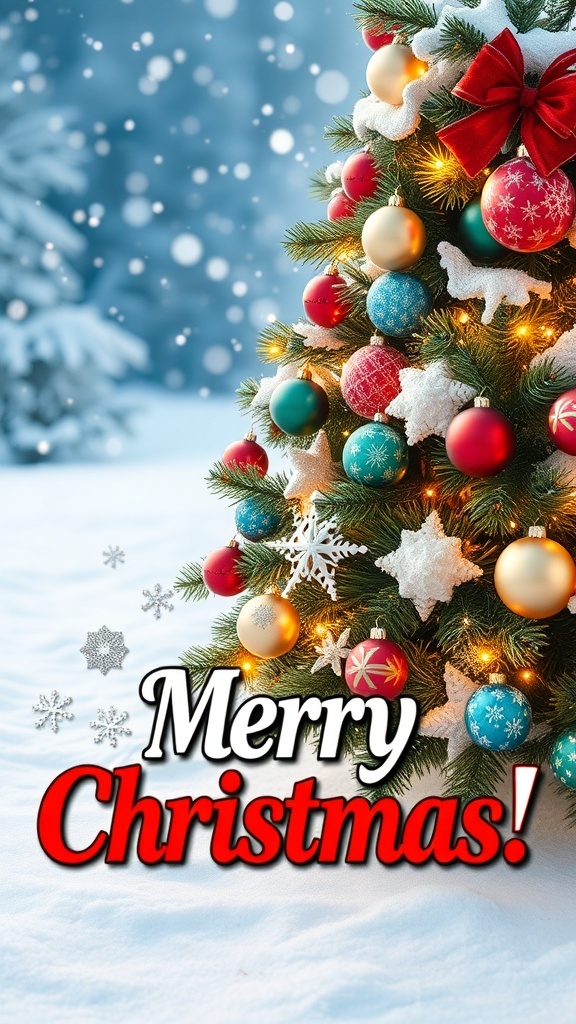
This guide covers essential design tips, including choosing the right dimensions, selecting festive colors, and incorporating holiday graphics. A well-designed banner can help convey your channel’s theme and engage your audience during the Christmas season.
Ingredients
- Graphic design software (e.g., Adobe Photoshop, Canva)
- High-resolution images of Christmas elements (trees, ornaments, snowflakes)
- Fonts that match the festive theme
- Color palette (reds, greens, golds, whites)
- YouTube banner dimensions (2560 x 1440 pixels)
Instructions
- Set Up Your Canvas: Open your graphic design software and create a new project with dimensions 2560 x 1440 pixels.
- Choose a Background: Select a festive background color or image that represents Christmas. Consider using gradients or textures for added depth.
- Add Graphics: Incorporate Christmas-themed graphics such as trees, ornaments, or snowflakes. Position them strategically to enhance the design.
- Select Fonts: Choose fonts that are easy to read and complement the holiday theme. Use contrasting colors to make the text stand out.
- Include Channel Name and Tagline: Add your channel name and a short tagline that reflects your content. Ensure the text is legible and well-placed.
- Finalize and Export: Review your design for balance and clarity. Once satisfied, export the banner in a high-resolution format suitable for upload.
Cook and Prep Times
- Prep Time: 15 minutes
- Design Time: 1 hour
- Total Time: 1 hour 15 minutes
- Servings: 1 YouTube Banner
- Calories: N/A